Key Takeaways
- The desktop AI Controls panel can block current and future Firefox AI enhancements and related promotions.
- You can keep individual features available without choosing the full Smart Window experience.
- Mozilla's September update describes Smart Window as an English-language beta in the U.S. and Canada.
- Smart Window stores memories on your device, but its default workflow also processes information on servers.

You do not have to enable Firefox’s Smart Window to keep using its regular browser. You can block Firefox’s AI enhancements, allow selected features, or opt into the more integrated assistant. The important choice is how much browser context a task actually needs.
Mozilla’s September 2 update explains those three levels. It does not announce a brand-new AI off switch: desktop AI Controls arrived with Firefox 148 in February. Smart Window is the separate beta experience, and its privacy notice deserves a closer look before you treat locally stored memories as entirely local processing.
Hero: view from Mozilla's Taiwan office in Taipei, June 2014. Archive location context, not a Smart Window demonstration. Photo by Oliver Propst, source, CC BY-SA 3.0. Cropped and resized by ToolSurge; derivative under the same license.
Start with a task, not an all-or-nothing AI preference
Mozilla’s September overview presents a continuum. One person wants no AI prompts. Another wants page translation but no assistant. A third wants help connecting information across a collection of tabs. Those are different needs, not successive levels that everyone should eventually adopt.
Our recommendation is to name the job before changing a setting. Translating one page does not inherently require a history-aware project assistant. Comparing several public product pages may benefit from shared context. Reviewing a confidential client document introduces a different question: whether that material should enter an assistant’s processing at all.
Make the first experiment small enough to understand. Choose public information, write down the result you want, and decide what you will verify yourself. You are selecting a tool for a task, not making an irreversible declaration about every future use of AI.
How to block Firefox AI without uninstalling the browser
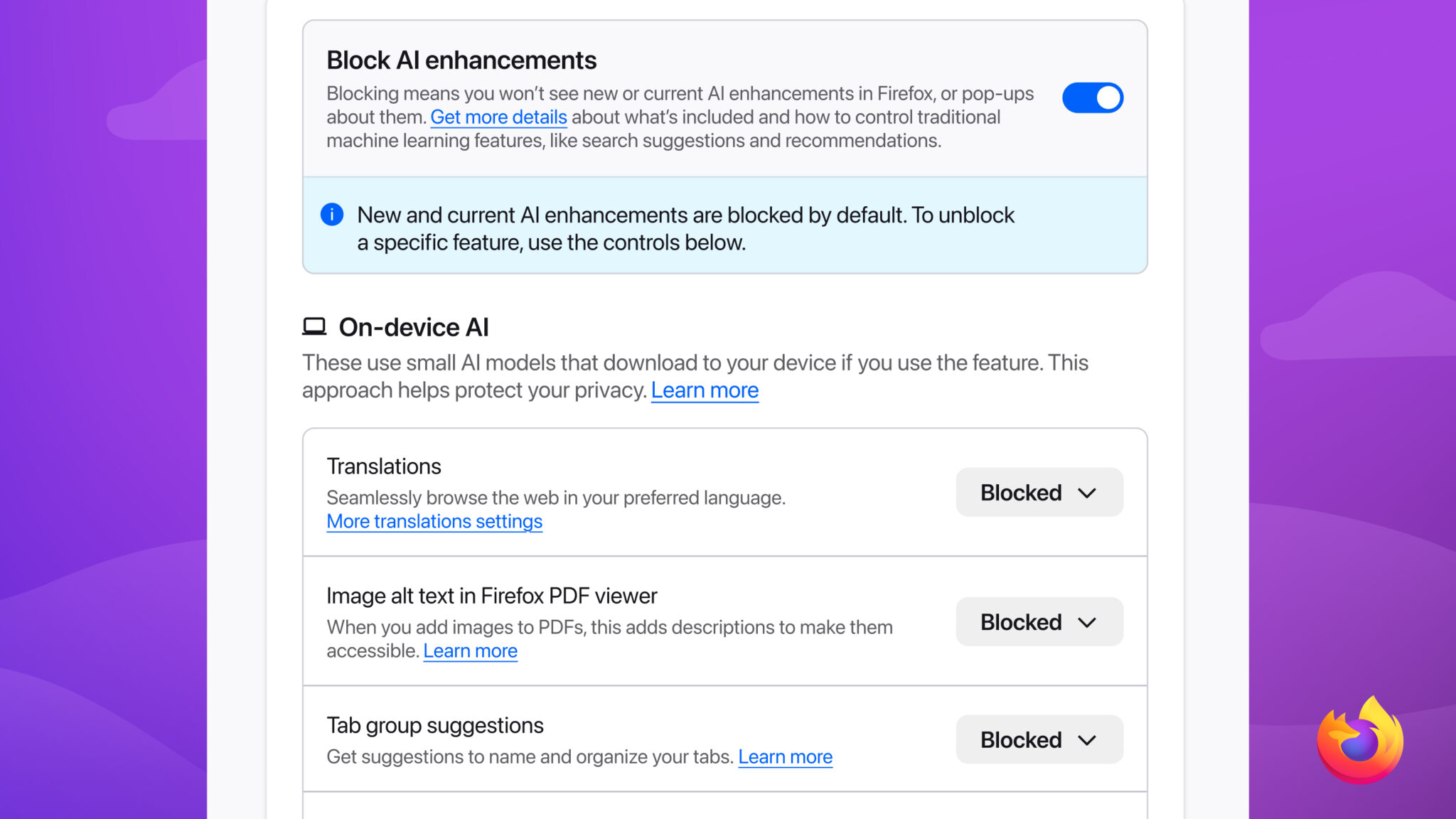
In desktop Firefox, open Settings and find AI Controls. Turn on Block AI enhancements for the broad opt-out. Mozilla says the switch hides the covered features and their promotions, including future additions. The panel was introduced with Firefox 148, released February 24.
The current help page also permits exceptions. Change an individual feature to Available or Enabled while keeping the broad switch on; future additions remain blocked by default. Available exposes a feature for use, Enabled records an opt-in, and Blocked disables it. Blocking an on-device feature removes its downloaded models.
This is not a universal filter for AI everywhere on the internet. Independent extensions can still call outside AI services. Traditional machine-learning features and third-party websites are not all governed by the panel. If your aim is to reduce external data sharing, also examine the extensions and services you actually use.
Selective features are a useful middle ground
Mozilla identifies translation, PDF image descriptions, tab grouping, link-preview summaries, and a sidebar chatbot among the individually controlled features. Its September explanation also describes choosing among chatbot providers instead of requiring one assistant for every task.
For a reader who wants translation but dislikes persistent AI entry points, the selective approach is practical. Keep the capability that solves a recurring problem and block the rest. You can revisit the decision when a real need appears; there is no productivity prize for enabling a feature you never use.
For chatbot users, distinguish convenience from trust. Moving a service into a sidebar changes where you interact with it. It is not, by itself, a reason to stop checking that provider’s account settings or data practices. The familiar browser frame can make a separate service feel more integrated than your actual agreement with that service.
Our browser-agent discussion looks at tools that work with browser tasks. A useful distinction carries over here: displaying a conversation next to a page is not the same job as helping an assistant reason across a project. Choose the smallest amount of integration that helps you finish.
Smart Window is a different context decision
Smart Window is optional, requires a Mozilla account, and can use browsing context to help with a project. Mozilla’s September announcement places the beta in English in the United States and Canada. Check the current offer for your account and region; that announcement is not evidence of worldwide availability.
Consider a travel-research example. You have several public hotel pages, transit information, and attraction opening hours. An assistant that connects those tabs may save repetitive copying. But a useful comparison still needs to preserve the actual dates, room conditions, cancellation rules, and prices from the source pages.
Ask for a bounded result, such as a comparison with links and unresolved questions. Avoid an instruction that quietly combines research, a final decision, and a purchase. A helpful browsing summary does not establish permission to spend money or enter personal details. Treat any later action as a separate decision with an explicit target.
Local memories do not mean every step stays local
The Smart Window privacy notice separates storage from processing. By default, Mozilla servers infer memories from assistant interactions and browsing activity, potentially including classic windows but excluding Private Windows. Mozilla says that input is not retained after processing; the resulting memories are stored locally and expire unless reinforced.
For chat responses, relevant memories and browsing context can accompany your query to Mozilla and then a third-party model. The model sees Mozilla’s IP address, not yours. A manually configured outside model endpoint can bypass Mozilla’s routing and follow that endpoint’s policies instead. Memory review, deletion, and exclusion from a particular chat are available controls.
The practical question is therefore not merely where a memory file lives. Ask what information is used to create it, what is included in the next request, and who processes that request. These are separate checkpoints. A locally stored preference can still become part of a server-processed prompt when it helps personalize an answer.
For work material, ask your organization’s administrator which browser-assistant workflows are permitted before experimenting with restricted information. An accessible toggle is not the same thing as organizational approval. This guide explains product choices; it does not certify that a particular configuration satisfies your workplace’s requirements.
A small trial that produces an answer you can assess
Our suggested trial uses three public pages about one low-stakes decision. Save their links, ask a precise question, and keep a short answer key of facts you can inspect directly. This lets you distinguish a polished response from a correct comparison.
First, check factual preservation. Did a limitation disappear? Were two dates combined? Did the assistant turn an unknown condition into a definite answer? Open the cited pages rather than treating the presence of citations as proof that every sentence is supported.
Second, check useful context. Did carrying information across pages improve the result, or would pasting a short passage into your existing tool have been simpler? More context can improve relevance, but unnecessary context can complicate both the task and your privacy decision.
Finally, check repeatability. Try a second question with different constraints. A tool that handles the original demonstration well may struggle when you change dates or ask it to distinguish a headline from a footnote. Our team evaluation guide applies the same principle: define useful outcomes before choosing the winner.
What happens next
If you want fewer AI interruptions, set the broad block and review exceptions. If one feature is useful, enable that feature deliberately. If cross-page projects are the bottleneck, try Smart Window with public material and inspect both the output and the context controls.
Keep a simple note of what you enabled and why. Revisit it after a meaningful feature change or when your work changes, not because every update requires starting over. Mozilla says AI preferences persist across updates; retaining control means understanding your choices as well as retaining the settings.
The best result is a browser configuration that earns its complexity. If an integrated assistant saves real work under acceptable conditions, keep it. If the regular browser plus a few selected features serves you better, that is a complete outcome too.
Quick poll
Which Firefox AI setup fits your browsing?
Our take: start with the task and the information it actually needs.
FAQ
Is the AI off switch new in September? No. Mozilla introduced desktop AI Controls with Firefox 148 in February. Its September article explains the wider range of choices.
Can I keep translation without choosing Smart Window? Yes. Mozilla offers individual feature controls separately from the optional integrated assistant experience.
Does blocking Firefox AI stop every AI extension? No. Extensions can independently use third-party services, which the Firefox enhancement switch does not universally block.
Are Smart Window memories processed only on my device? No. Local memory storage is one part of a workflow that also includes server processing by default. Read the privacy notice before using sensitive context.



.jpeg)